

WebDirect is a special component of FileMaker that is capable of emulating nearly all of FileMaker’s native functions in a standard Web browser, such as Google Chrome and Safari. However, there are a few areas where WebDirect, particularly on mobile devices, requires a few workarounds. Printing is one such area since mobile devices can’t directly access any print functionality.
How to Print a PDF in Seed System
When you print a confirmation in Seed System Solution, WebDirect builds a PDF and opens it in a second browser window. However, browsers on mobile devices are generally set to block pop-ups by default. Consequently, users may think the Print button does nothing.
Here’s how to solve this issue. Some steps you will only need to perform once and others every time you want to print or save a confirmation.
Before you start
- You must be signed in to Seed System via WebDirect and have the transaction you want open.
- You have an AirPrint-capable printer on the same Wi-Fi network as your mobile device if you want to print to paper. (Alternatively, you can print to PDF and later print to paper from a desktop computer.)
Part 1: Allow pop-ups from Safari on Apple Devices (one time setup)
- Swipe up from the bottom of your device to quit Safari.
- Open the Settings app on your device.
- Scroll down and select Apps > Safari.
- Toggle Block Pop-ups off.
- Green = pop-ups blocked. WebDirect printing will fail.
- Grey = pop-ups allowed. This is what you want.
- Reopen Safari and sign back in to Seed System Solution via WebDirect.
We recommend leaving Block Popups disabled. Safari will still warn you when a site triggers a pop-up, allowing you to verify or block on a site-by-site basis.
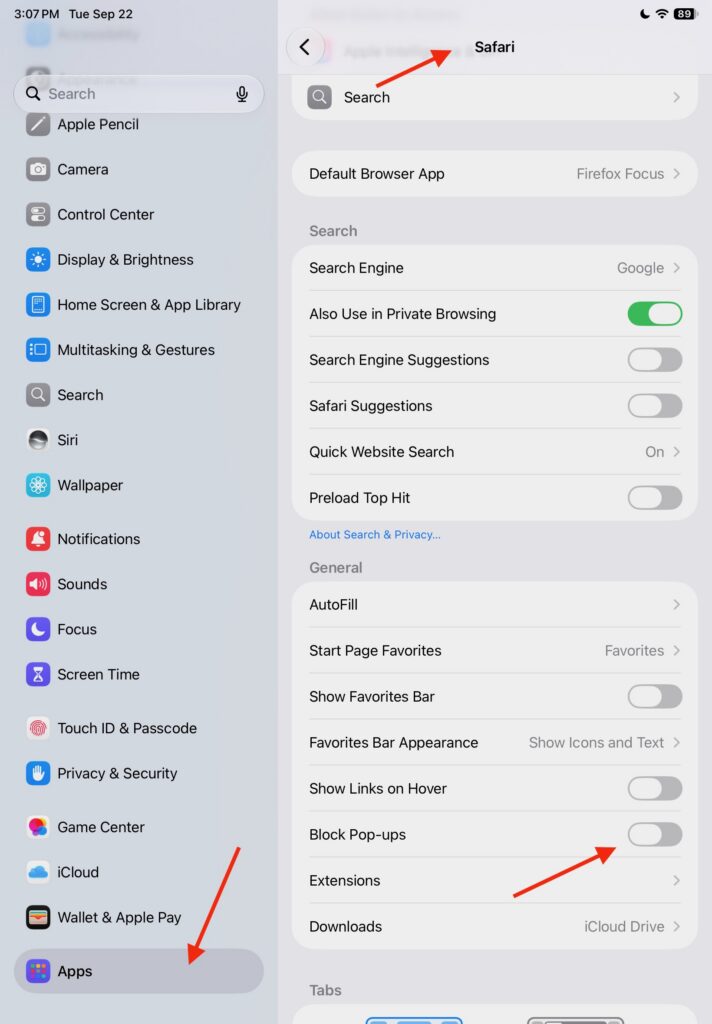
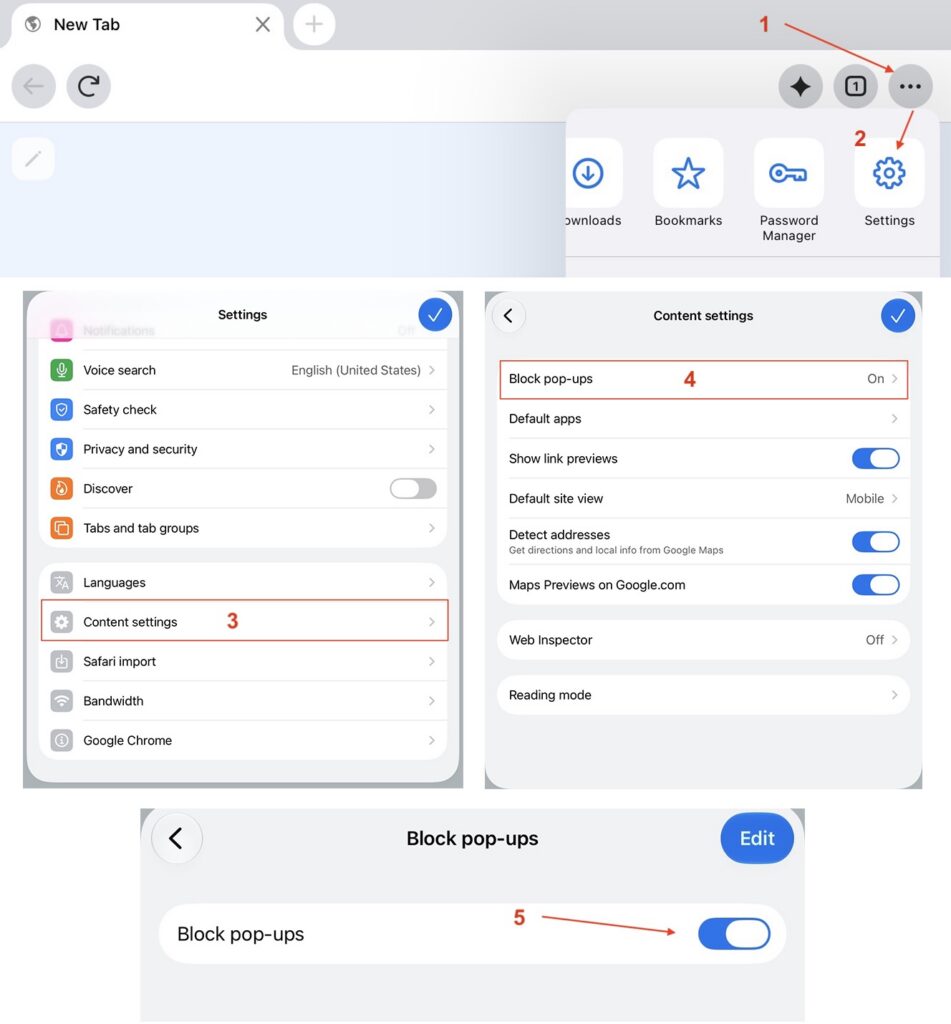
If you use Chrome instead of Safari on an Apple Device
- From Chrome, select the ••• menu
- Next select Settings
- Scroll down and select Content Settings
- Select Block Pop-ups
- Toggle the button to off (gray).
- Blue = pop-ups blocked. WebDirect printing will fail.
- Grey = pop-ups allowed. This is what you want.
Chrome Settings for Android Users
- From the Chrome browser, select the three-dot menu (…) (top right)
- Select Settings.
- Select Site Settings.
- Select Pop-ups and Redirects
- Set button to Allowed.
- Blue = pop-ups allowed. This is what you want.
- Grey = pop-ups allowed. WebDirect printing will fail.
Alternatively, you can leave the Pop-ups setting alone. When you print from WebDirect, Chrome will display a Pop-up Blocked bar. Select Always show, and Chrome will remember to allow WebDirect pop-ups next time you access Seed System Solution.
Part 2: Print or Save a Confirmation
In Seed System Solution WebDirect, open the transaction you wish to print and start the print process the way you normally do.
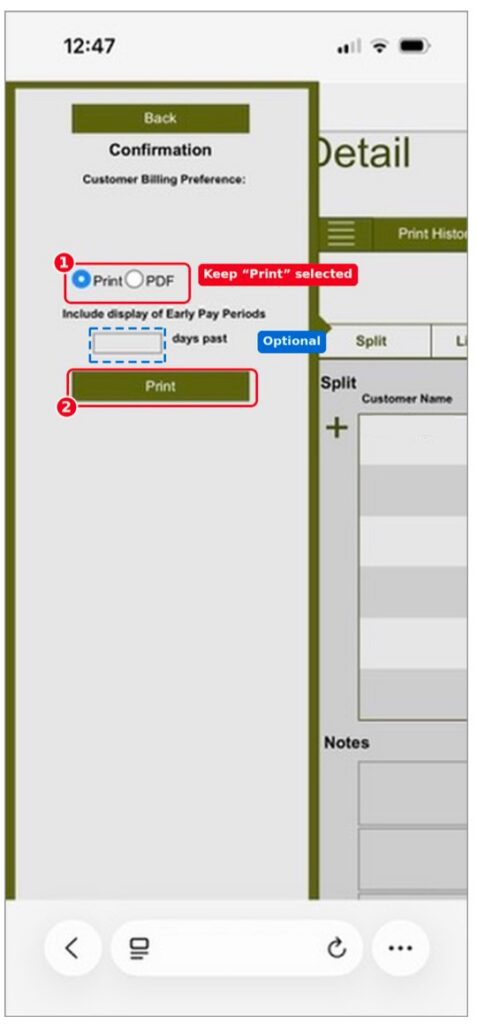
- Select the Print option in the radio button set..
- NOTE: The PDF option here is a different delivery route. Do not select it.
- Tap the Print button.
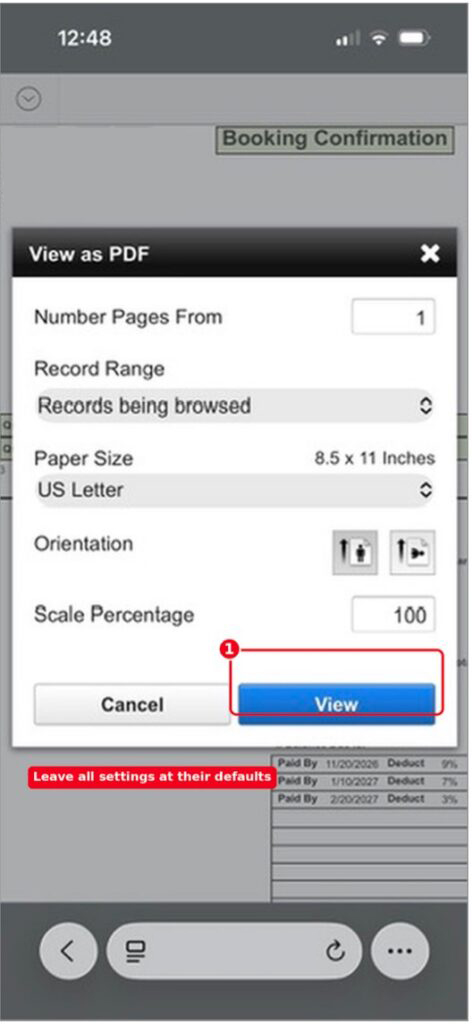
- WebDirect launches its own View as PDF window. The defaults are already correct for a booking confirmation. Do not adjust these defaults.
- Number Pages From: 1
- Record Range: Records being browsed
- Paper Size: US Letter, 8.5 x 11 inches
- Orientation: portrait
- Scale Percentage: 100
- Tap the View button.
[If you followed Part 1 and disabled Pop-up blocking, skip to step 8.]
- If you did not disable Pop-up blocking in Part 1, the browser will trigger a pop-up window warning. Select Allow.
- Alternatively, you can select the three-dot menu (…) (lower right) to instruct the browser to save the WebDirect address and allow pop-ups on future visits to this site.
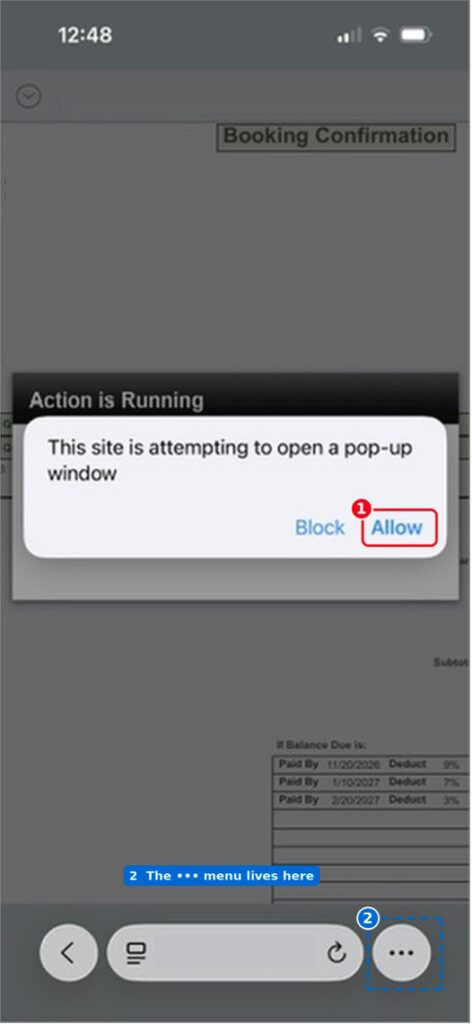
- Now you should see a print preview of your selected transaction in the browser. Tap the three-dot menu (…).
- Note the three-dot menu appears in different locations depending on what type of mobile device you are using. It may be at the top right or lower right. If you do not see a toolbar at all, tap once anywhere on the PDF preview to reveal it.
- The Options menu will appear. Select Share.
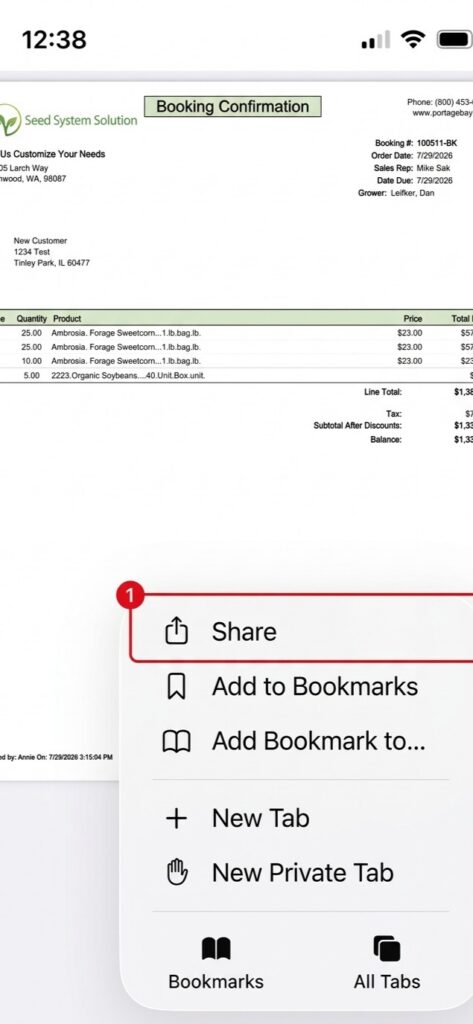
- From the Share menu, you can choose Print if you have an AirPrint capable printer on your local network. Once printing has finished, skip to Part 3.
- To save the PDF, select Save to Files on Apple devices or Download on Android devices. depending on your device.
- Tap the Folder name (1) to select the folder you want to save the PDF to.
- Tap the Name field (2) to rename the file, which by default is “PDF”.
- Tap the Save button (3).
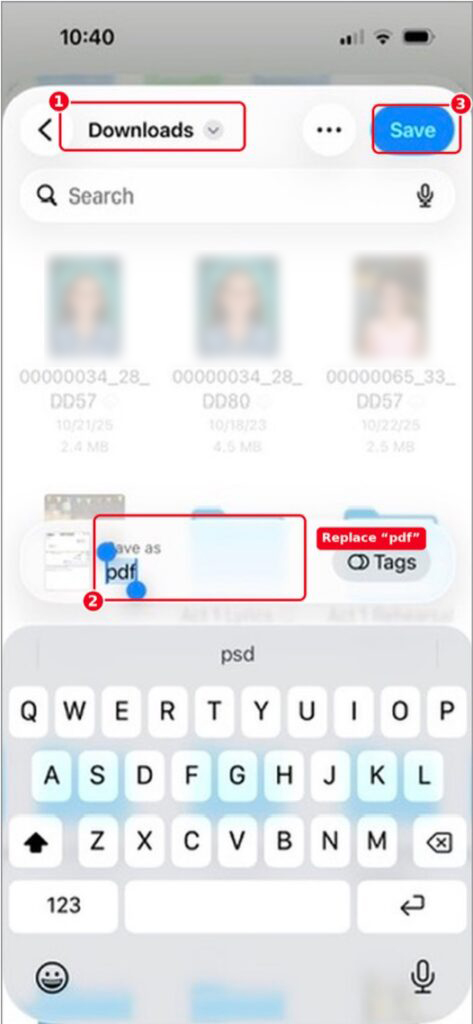
After choosing how you want to share, you can reassess the Share sheet additional times to select alternate options.
Part 3: Close the Print Preview Tab.
Now that you have successfully printed or saved your transaction, you’ll want to close the window displaying the print preview. Depending on the mobile device and browser you are using, there are different ways to close the browser window.
- In Apple Safari or Chrome on iPad, click the close button (x) from the top tab panel.
- On the iphone, click the tab count icon on the bottom toolbar. Then click the close button (x) next to the last displayed tab.
- In Android Chrome, tap the square tab-count button at the top right and tap the close button (x) next to the last tab displayed.
NOTE: Do not close the WebDirect tab. Closing the Detail tab ends your FileMaker session. You will have to sign in again, and any record you were partway through editing is left open on the server until the session times out.
Troubleshooting
| What you see | What it means | What to do |
|---|---|---|
| Tapping Print does nothing at all. | The pop-up blocker is still on. | Repeat Part 1. Then fully close and reopen the browser and sign back in. |
| A “Pop-up blocked” bar appears at the bottom (Chrome). | Chrome blocked the print window. | Tap Always show on that bar, or set the Chrome option in Part 1. |
| You tapped Block by mistake. | The window was refused for this attempt. | Return to the record and start Part 2 again. |
| The PDF tab opens but stays blank or spins. | The PDF is still being built on the server. | Wait a few more seconds. Long bookings take longer. Do not tap Print again. |
| Print is missing or greyed out on the Share sheet. | No AirPrint printer was found on the network. | Use Save to Files instead and print from a computer. |
| Saved files are all called pdf, pdf 1, pdf 2, etc. | Part 2, Step 10 was skipped. | Open the Files app. Press and hold on the file. Choose Rename. Next time remember to rename the file in Step 10. |
| You were signed out of WebDirect. | The WebDirect tab was closed instead of the PDF tab. | Sign in again. In part 3, close only the tab showing the PDF preview. |
| The confirmation prints sideways or cut off. | The settings in the View as PDF window were changed. | Repeat Part 2 and leave every setting in Step 4 at its default. |
Notes for the Office
- Part 1 covers device settings, not WebDirect settings. A new phone, a factory reset, or a colleague’s tablet all need the same one-time change.
- Saving to Files keeps the confirmation on the phone only. To get it into the customer record or a shared drive, attach to an email or upload it from the Files app.